

Last updated on July 2, 2026
Generate an API Key
Create a scoped API key to authenticate requests against an OAuth integration.
Overview
An API key authenticates requests made on behalf of an OAuth integration. Each key is scoped to a single integration and is returned exactly once at creation time — the secret value cannot be retrieved afterward, so it must be stored securely immediately.
Every API key generated for an integration includes:
- A private API key — used as a bearer credential in API requests. Shown only at creation.
- A public key — a non-secret identifier that can be shared or logged.
- A user-provided label to distinguish keys in dashboards and audit logs.
Prerequisites
A configured integration
You must have an integration in configured status. See Create an Integration if you haven't set one up yet.
Permission to manage keys
Your account must have permission to create API keys within the workspace that owns the integration.
Generate via the UI
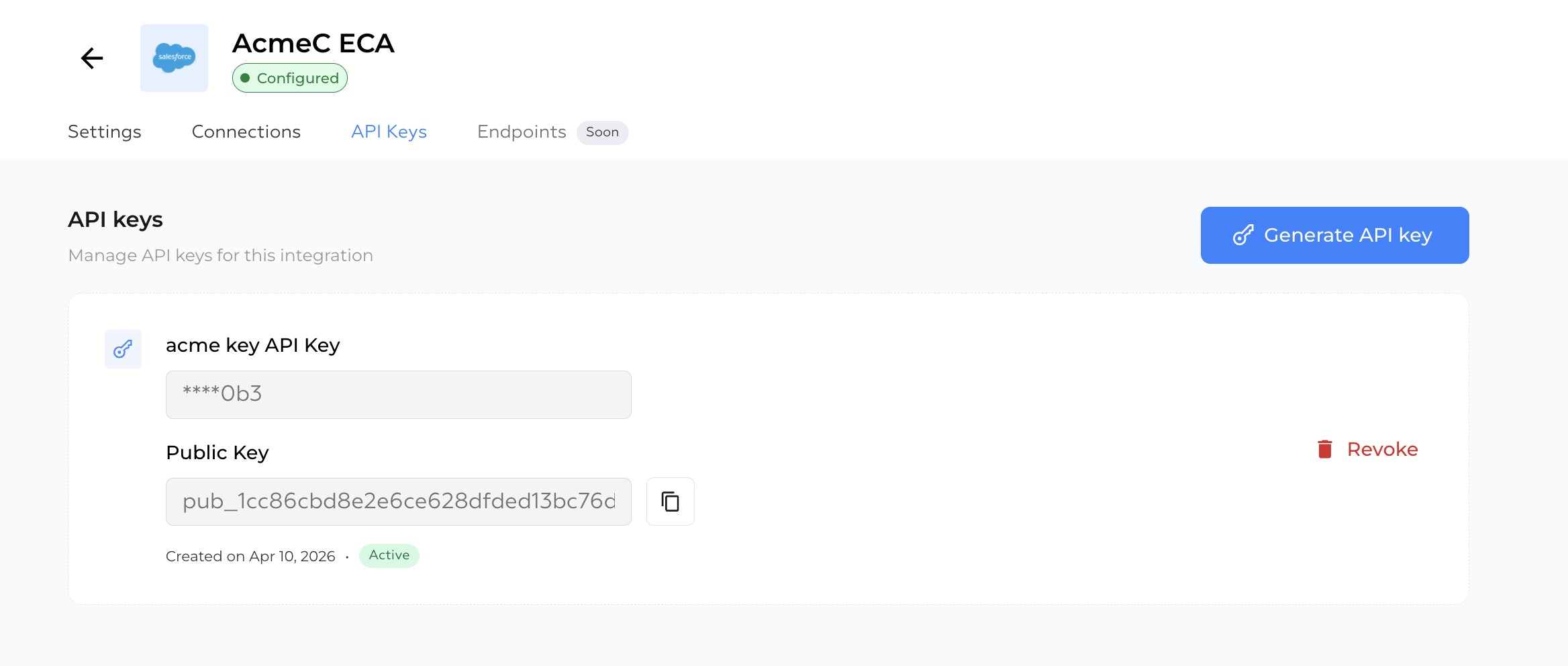
Open the integration's API Keys tab
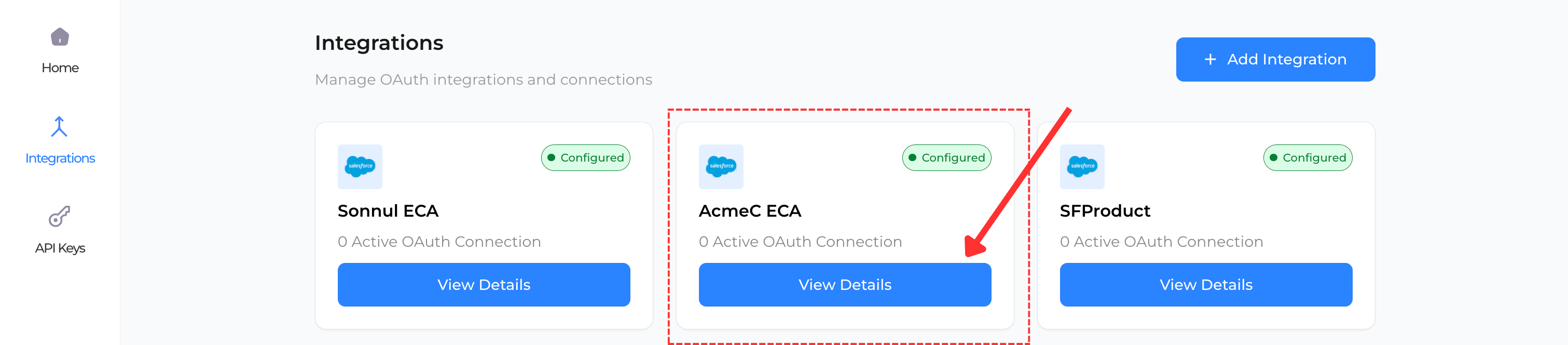
From OAuth → Integrations, click the integration you want to issue a key for, then select the API Keys tab on its detail page (/oauth/{integrationId}).
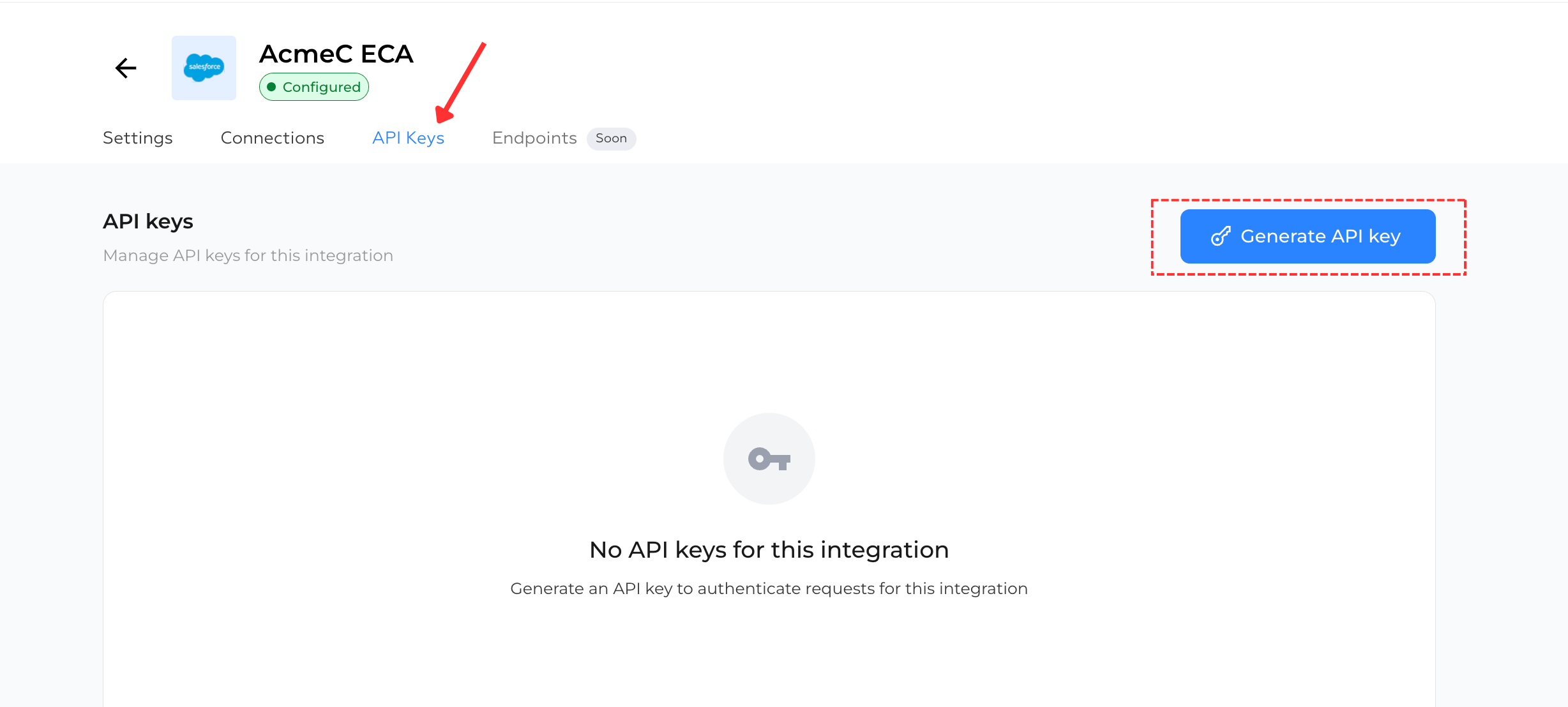
Click 'Generate API key'
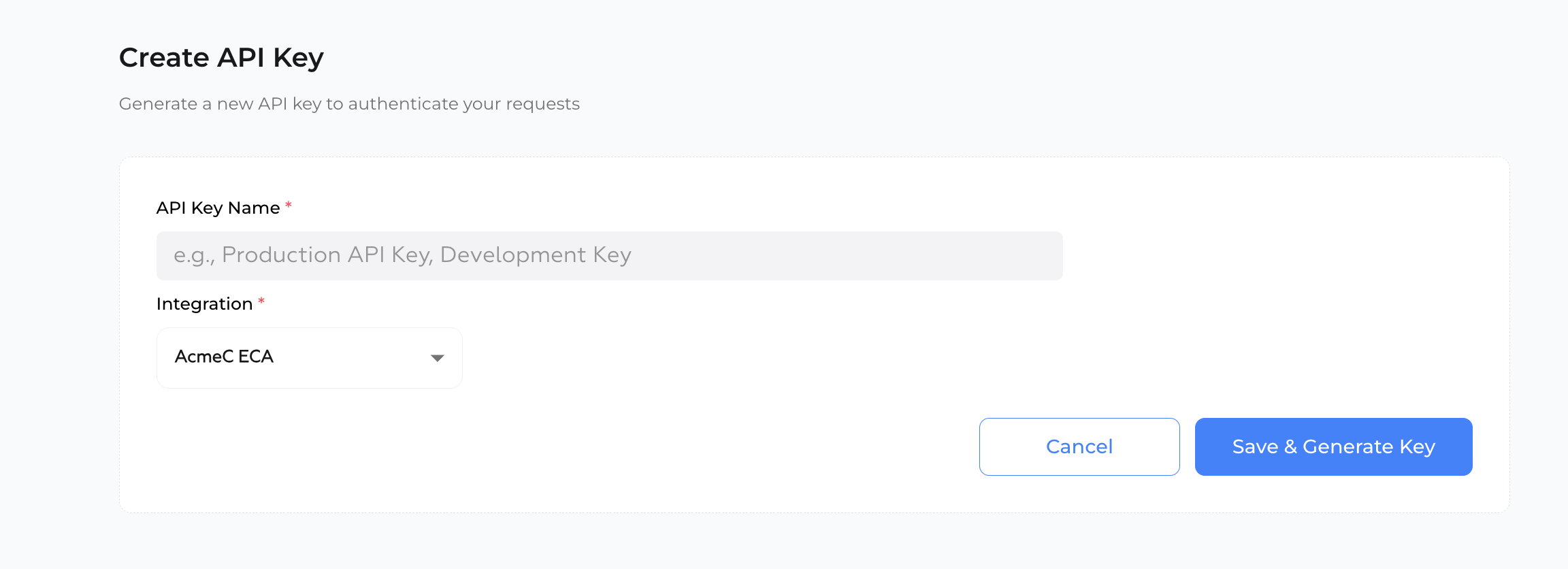
The button in the top-right of the API Keys tab opens the Create API Key form at /api-keys/create with the integration pre-selected.
Name the key
Enter a descriptive API Key Name (e.g. Production Backend, Local Development, CI Runner). This label helps identify the key later when auditing or revoking.
Click 'Save & Generate Key'
The platform creates the key and redirects you to the confirmation page.
Copy and store the key
Immediately copy the API Key Value and (optionally) the Public Key using the copy buttons. Store the private key in a secrets manager or environment variable. Once you navigate away, the private key can never be viewed again.
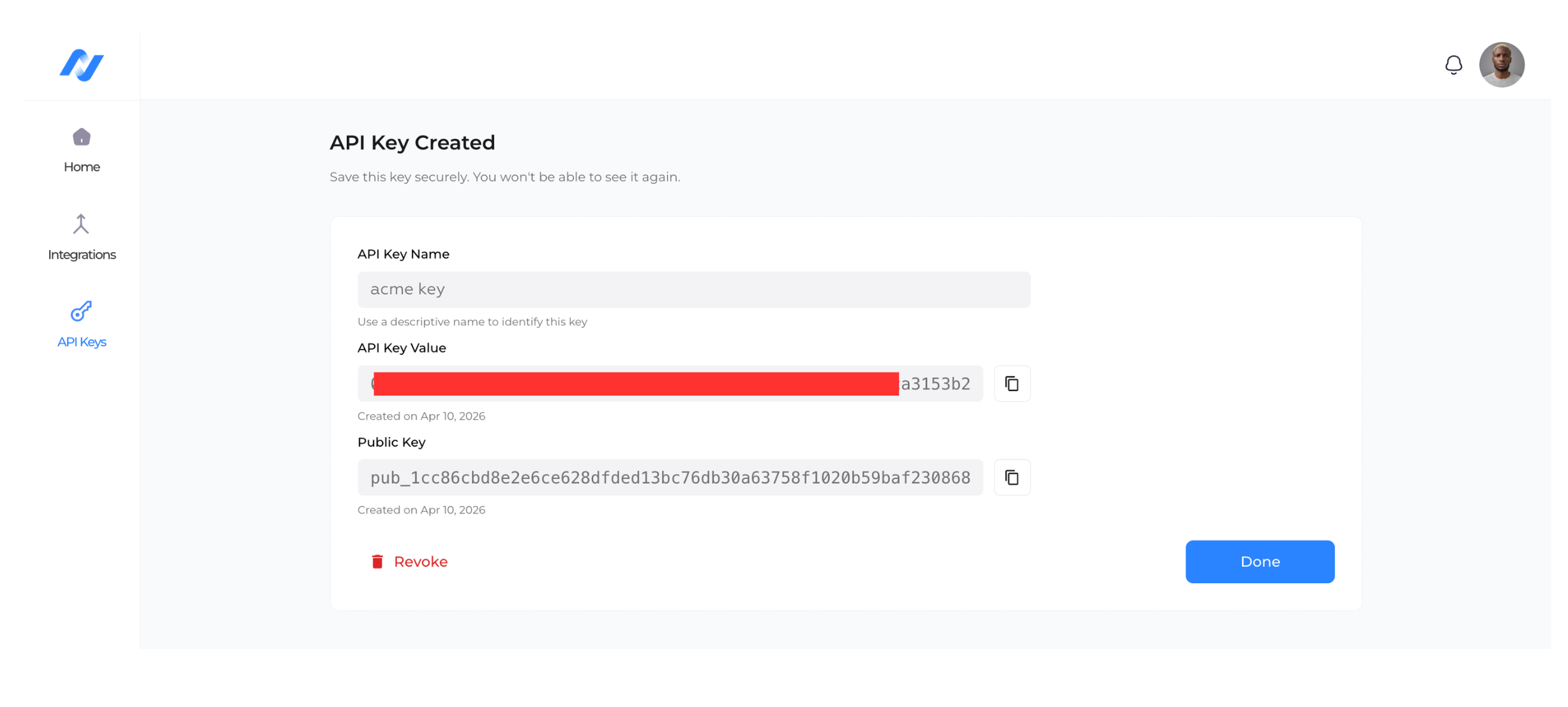
This is your only chance to view the API key value. The platform does not store the plaintext secret — only a hashed version used for verification. If you lose the key, you must revoke it and generate a new one.
If you arrived on the form from the integration's API Keys tab, clicking Done will return you directly back to that tab so you can verify the new key appears in the list.
Revoke a key
Revocation is immediate and irreversible. Any request using the revoked key will begin returning 401 Unauthorized as soon as the call succeeds.
Revoking a key in production will break any service still using it. Generate and deploy a replacement key before revoking the old one.
You can revoke keys from the UI via:
- The Revoke button on the API Key Created confirmation page (right after generation).
- The revoke action in the API Keys tab on the integration detail page.
Security Best Practices
Never commit keys to source control
Store API keys in environment variables, secrets managers (AWS Secrets Manager, Vault, Doppler), or platform-native secret stores.
Use one key per environment
Generate separate keys for production, staging, and development so you can revoke them independently.
Rotate keys regularly
Create a replacement key, deploy it, then revoke the old key. Avoid gaps in coverage.
Label keys clearly
Use descriptive labels like api-gateway-prod or cron-worker-staging so you know which system owns each key when auditing.